A productivity tool for Gig Workers like you!

Compare. Learn. Decide with Confidence.

Stop second-guessing. Start making better gig decisions.

9:41􀙇 􀙈 􀛨
9:41
Monday, August 10
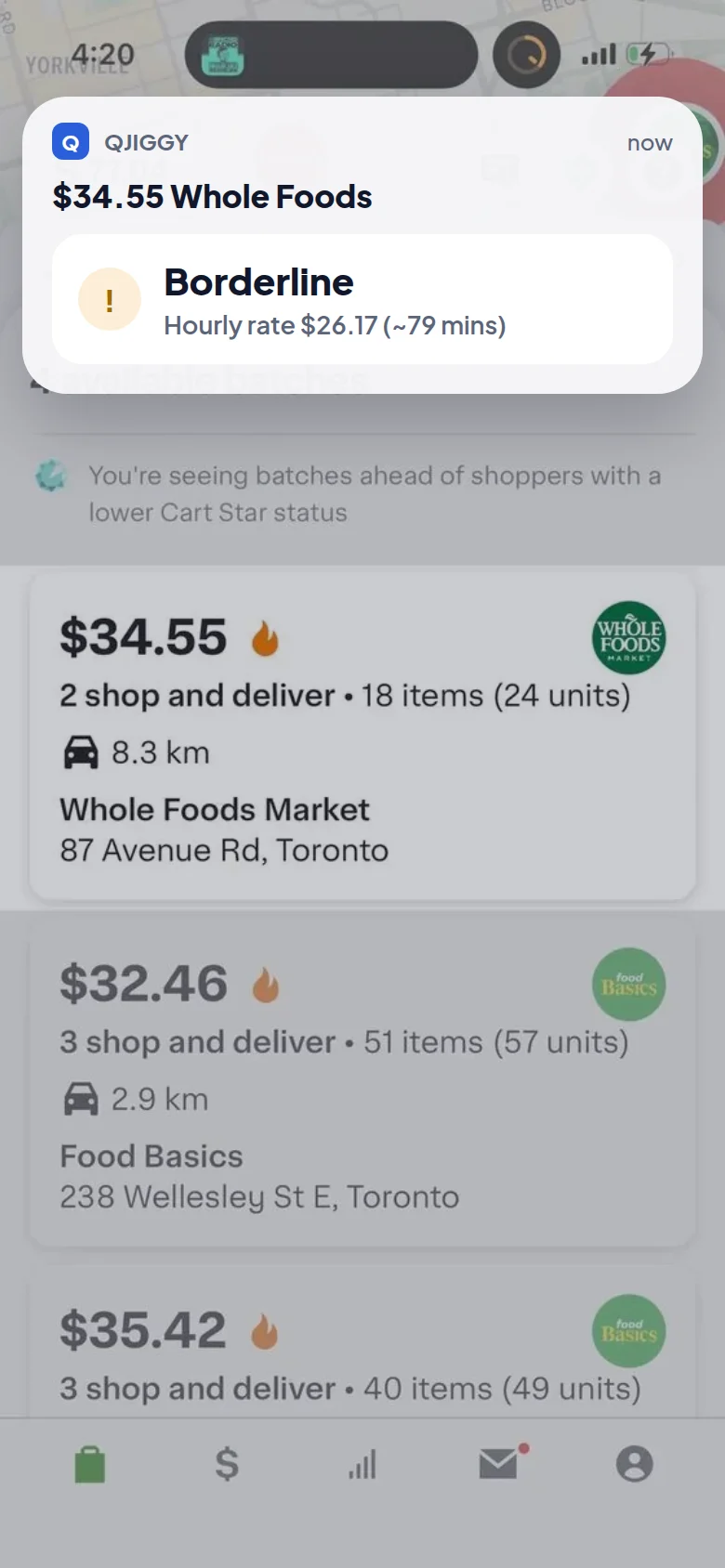
Borderlinenow
$24.00 Farm Boy
Hourly rate $22.43 (~64 mins)
This batch
$22.43/hr
How it works

Three Steps to a Better Decision.

Your phone does the work, QJiggy gives you the benchmark, and the decision is always yours.

1

Screenshot

Press the trigger button. It will screenshot then talk to QJiggy — no manual entry, no typing anything in.

2

Compare

QJiggy responds with an hourly rate and time estimate, which may include travel time to the assigned location.

3

Decide

You always make the call. Try and beat the estimated time, and you'll be on your way to higher earnings!

Pricing

Start free. Grow when you're ready.

PRO and ELITE are on the roadmap — built for gig workers who want to go further.

Available now

Free

$0

Everything you need to start comparing batches today.

  • Screenshot reader
  • Get travel time to store
  • On-screen button trigger
  • Save to notifications
Get Started
Coming soon

Pro

Customize QJiggy to you.

  • Customize QJiggy to you
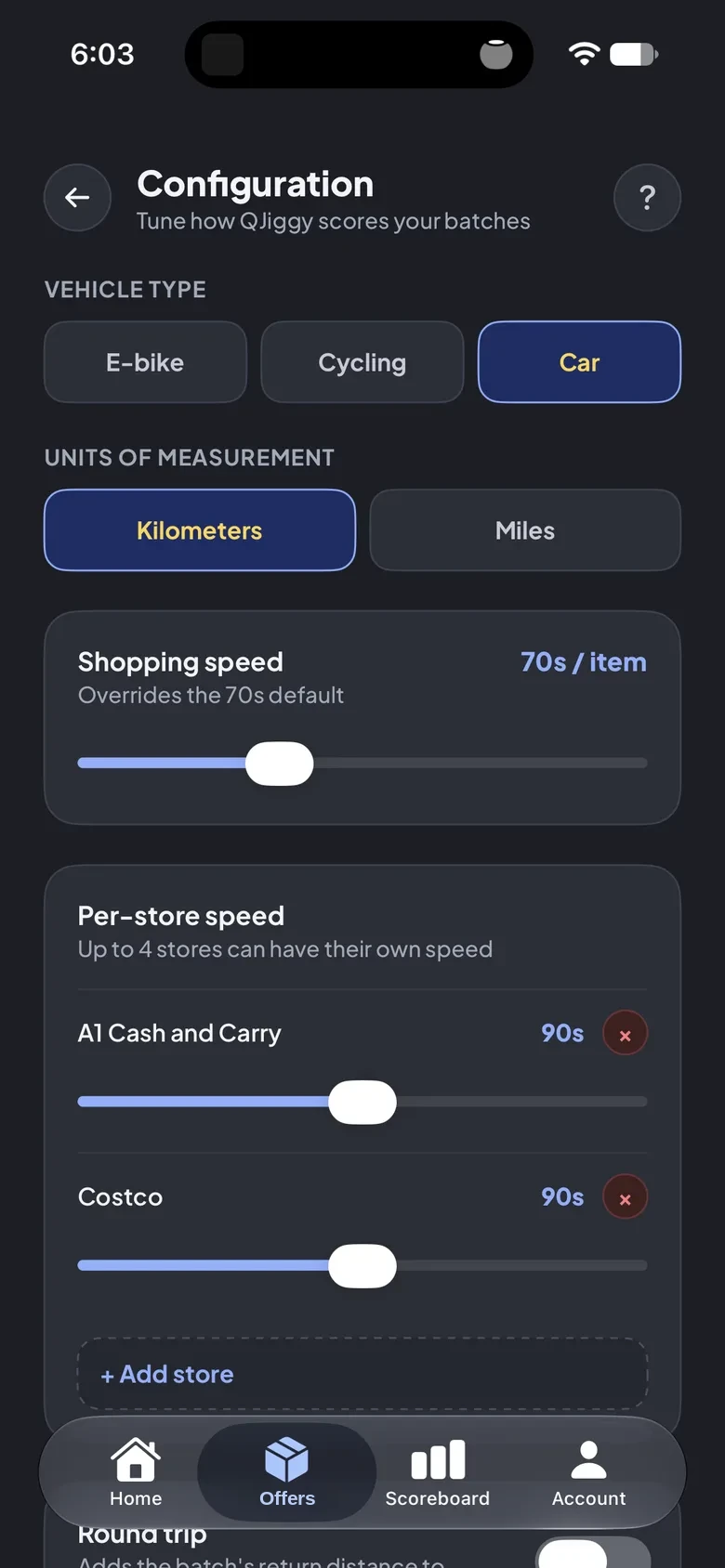
  • Store preferences
  • Adjust benchmark settings like earnings per distance
  • Customize notifications
In Development
Future release

Elite

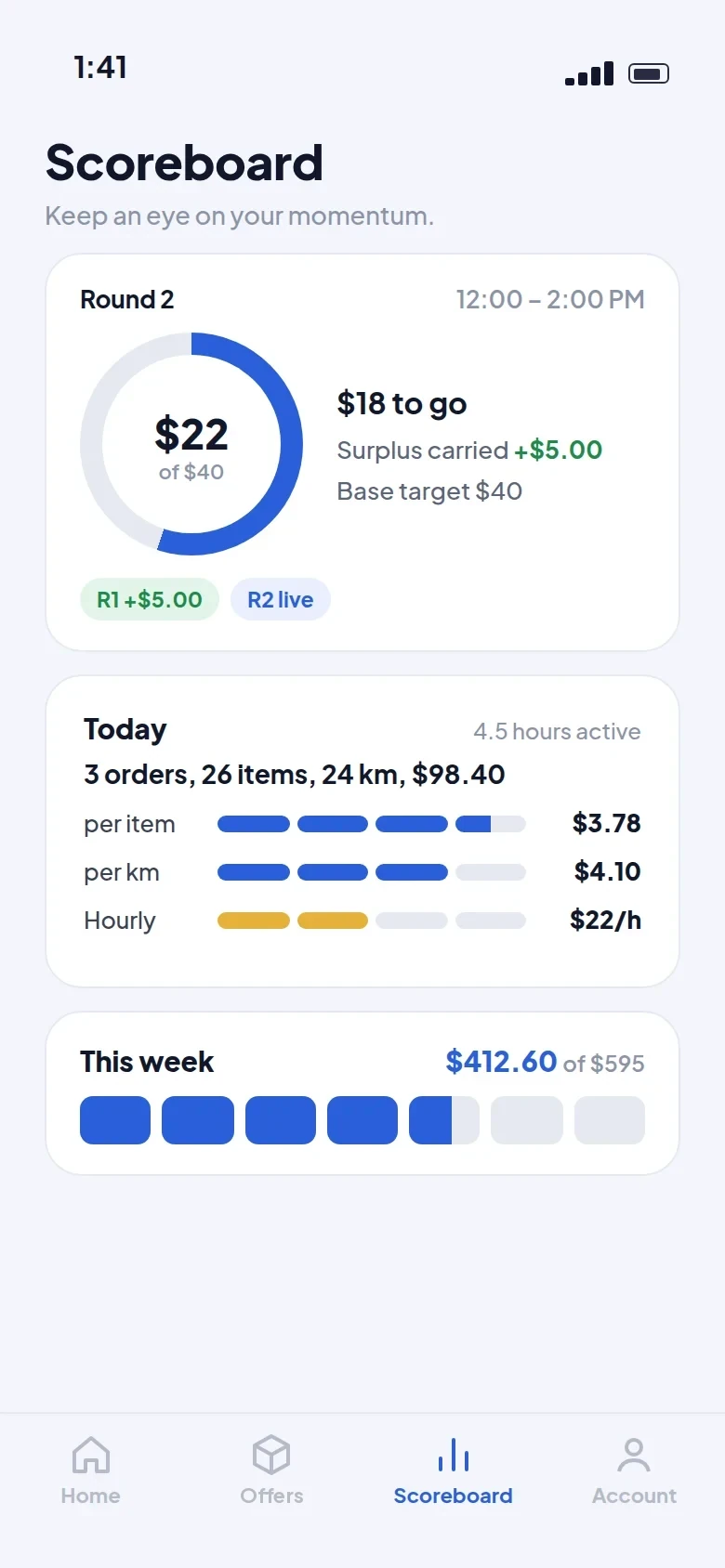
Everything in Pro, plus the Scoreboard.

  • Everything in Pro
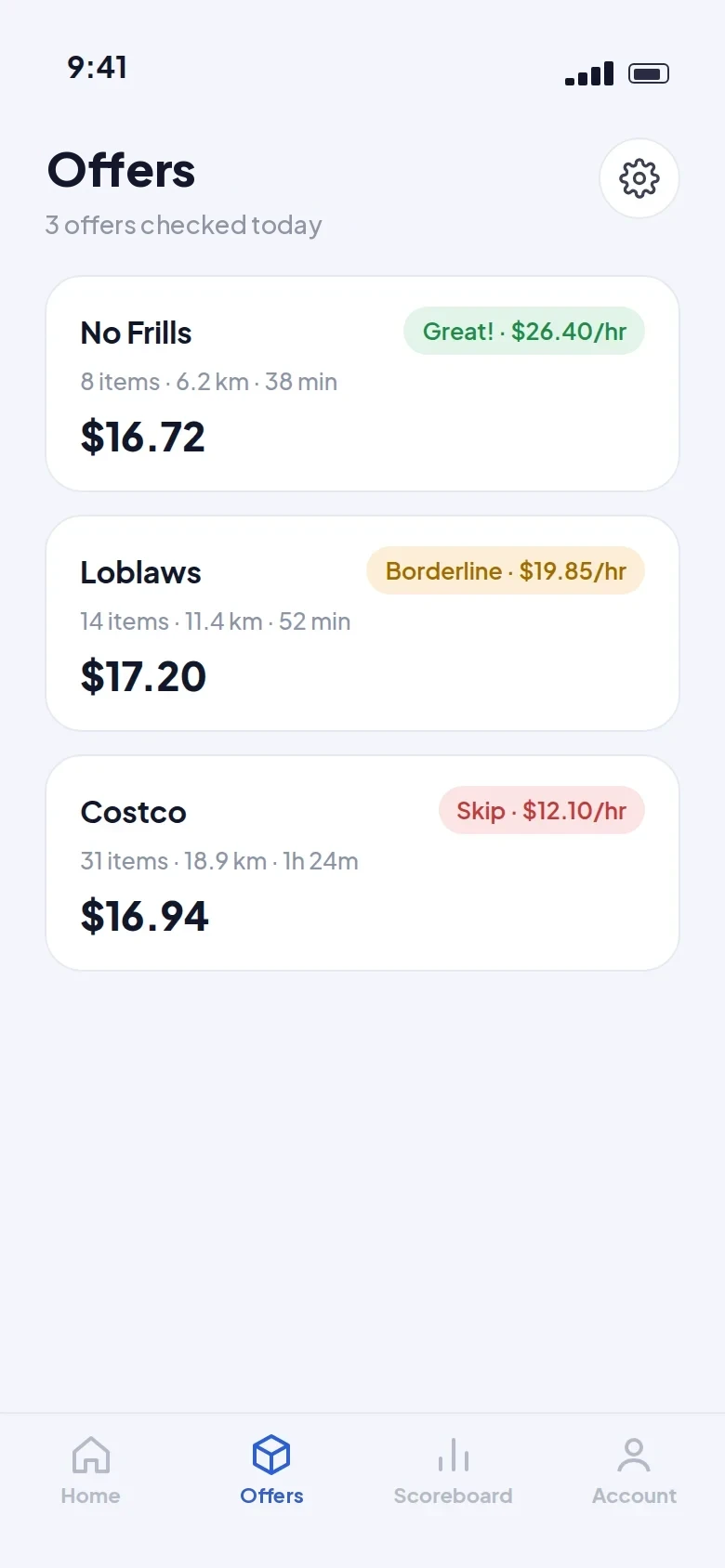
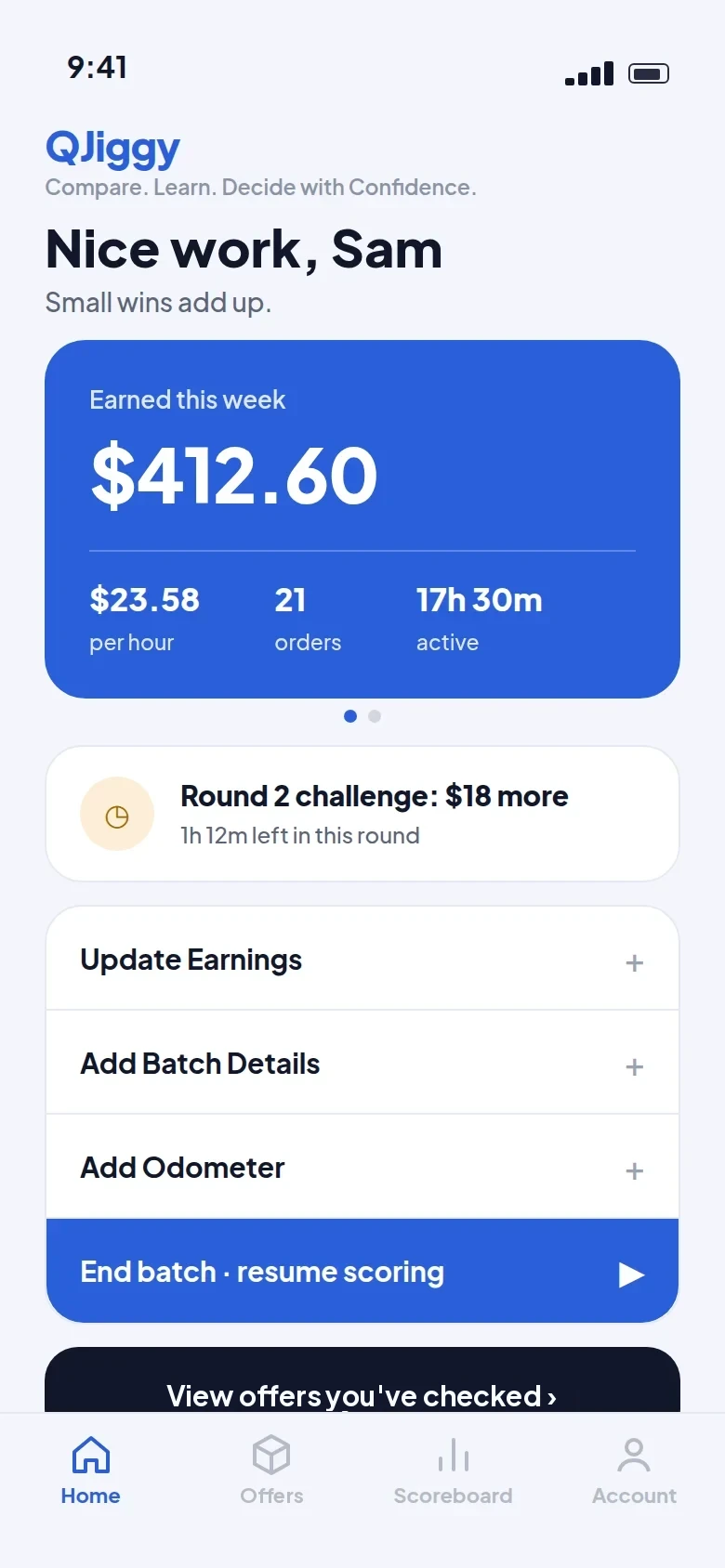
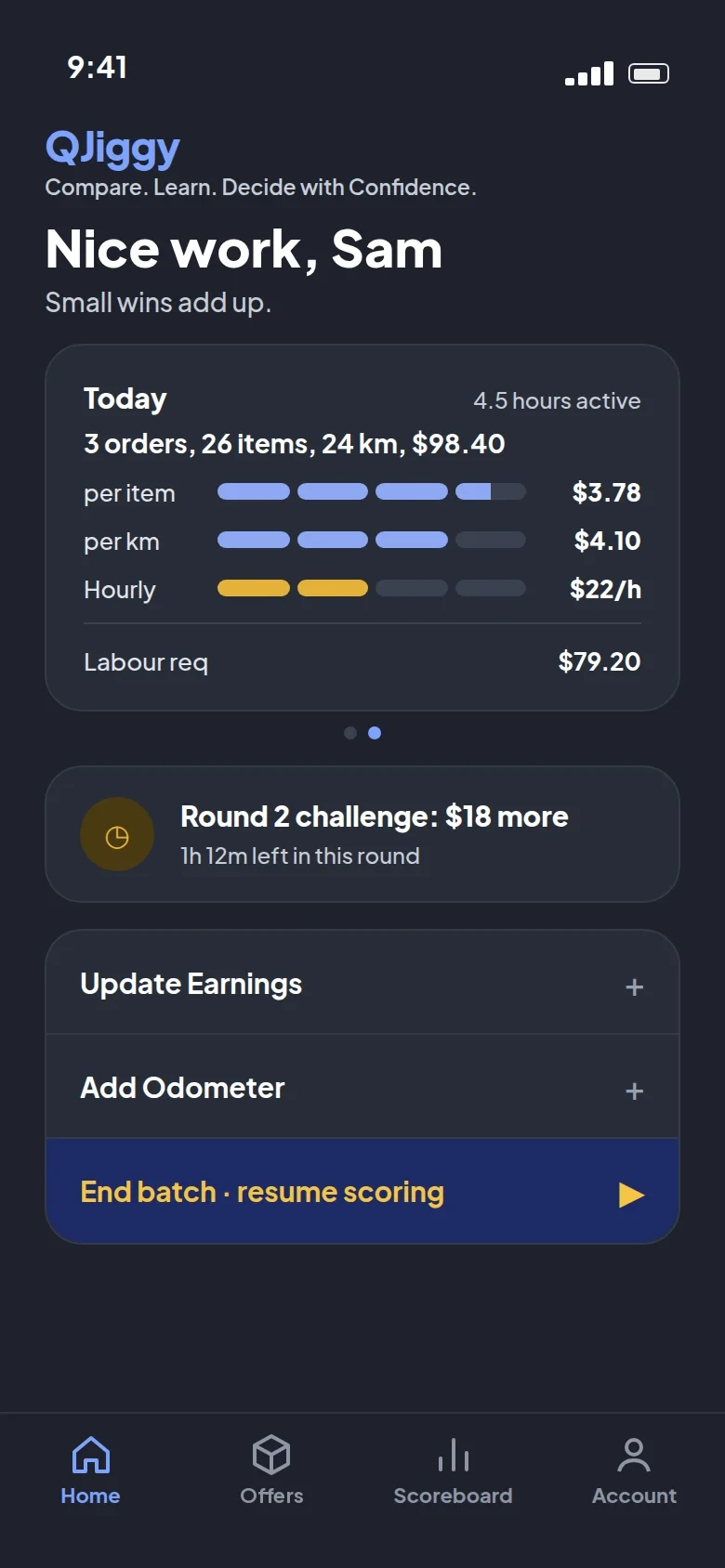
  • Scoreboard — daily progress with a weekly progress bar
  • Set your planned earnings and days
  • Track your metrics every time you complete a batch
  • Smart nudges to help you hit your daily goal
Coming Later
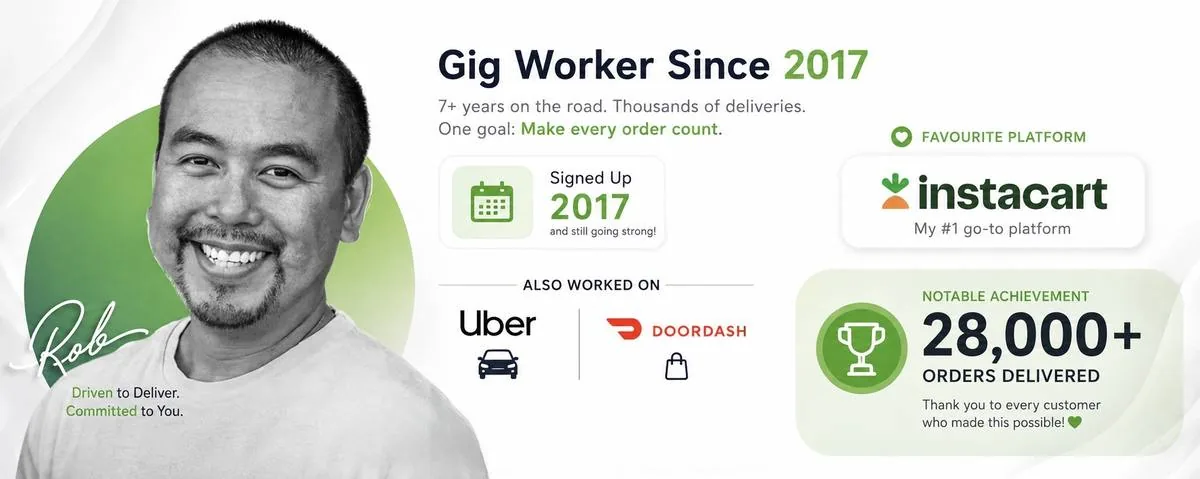
Rob — gig worker since 2017, 28,000+ orders delivered
Real gig worker, real tool

Built by RobTheShopper.

QJiggy isn't a corporate roadmap — it's built by RobTheShopper, an active gig worker who got tired of doing batch math by hand. Every feature exists because it solved a real problem on a real shift.

Follow along for behind-the-scenes builds, real batch breakdowns, and honest takes on what actually pays.

@RobTheShopper on Instagram
Why QJiggy exists

Confidence through comparison, not competition.

QJiggy was built on one belief: gig workers deserve a dependable benchmark, not a judgment call. Every batch, every number, every decision — measured against your own standard, not someone else's. That's the whole idea.

Your Best Decisions Start
With A Comparison.

Free to download. No credit card. No guesswork.

⌄ Download QJiggy Free
Products

How It Works

QJiggy lives in tools your phone already has — press the trigger and the rest happens on its own. Three steps, no app to open.

Screenshot

Press the trigger button.

Read

It reads the offer and talks to QJiggy.

Compare & Decide

You get a rate and time estimate back — no typing, no switching apps, you call it.

Want to build it yourself? Visit the DIY Workshop →

iOS Shortcut

Requires iOS 17+

A pre-built Shortcut you add through the Shortcuts app.

⌄ Get the Shortcut
v1.0 · Released Aug 5, 2026
Setup — trigger button
  1. Turn on AssistiveTouch — Settings → Accessibility → Touch → AssistiveTouch (On). The button will appear on screen.
  2. Set the button's action — Custom Actions → Single-Tap → QJiggy.

Now your button is always above any gig app and ready for your press!

Android Macro

Requires MacroDroid

An importable macro that watches for your trigger, grabs the screenshot, and talks to QJiggy automatically. For Android, download MacroDroid from the Google Play Store, then import this pre-built macro.

⌄ Get the Macro
Setup — trigger button
  1. Import the pre-built macro file into MacroDroid.
  2. Open the macro's Trigger settings and assign it to a Floating Button or Quick Tile.

Now your button is always above any gig app and ready for your press! Note: getting travel time to the store requires a separate HTTP Request using a token from your map service provider.

Plans

One tool, three tiers.

Start free today — Pro and Elite are on the roadmap for gig workers who want to go further.

Available now

Free

$0

Everything you need to start comparing batches today — no cost, no catch.

  • Screenshot reader
  • Get travel time to store
  • On-screen button trigger
  • Save to notifications
Get Started
Coming soon

Pro

QJiggy, tuned to how you actually shop and what you're actually paid for.

  • Customize QJiggy to you
  • Store preferences
  • Adjust benchmark settings like earnings per distance
  • Customize notifications
In Development
Future release

Elite

Everything in Pro, plus the Scoreboard — turning every batch into progress toward your goal.

  • Everything in Pro
  • Scoreboard — daily progress with a weekly progress bar
  • Set your planned earnings and days
  • Track your metrics every time you complete a batch
  • Smart nudges to help you hit your daily goal
Coming Later

Set it up once,
and it does the rest.

QJiggy is free to use, customization and Scoreboard are on the way.

⌄ Get Started Free
DIY workshop

Build your own phone assistant.

No coding degree, no server to babysit — just your phone's Shortcuts app (or MacroDroid on Android) and a passion for learning.

Works with Uber and Instacart today — more platforms are on the way.

The build

From screenshot to smart notification.

Here's the exact pipeline — screenshot in, decision out. Every step happens right on your phone.

1

Snap it

Your input is just a screenshot of the batch offer. That's it — no typing, no copy-pasting.

2

Let OCR do the reading

Your phone already has a built-in OCR (optical character reader). Run it on the screenshot and you get back a big pile of raw text to work with.

3

Tidy up the mess

Raw OCR text is chaotic. A Replace Text action with a regex like .*batch earning.*\n?|\d+ km from.*|.*hidden.* (replaced with a space) clears out the noise before you touch anything else.

4

Figure out which screen you're on

Instacart alone has a batch view and a list view. An IF action checking whether the text contains "looking for" tells your Shortcut which layout it's dealing with.

5

Pull out the good stuff

Regex grabs the numbers that matter and saves each one to a variable. For batch pay, something like (?<=\$)\d+(?:\.\d{1,2})? grabs the number right after the $ sign.

6

Ship it to QJiggy

An HTTP Request action sends your variables as JSON to the QJiggy transform endpoint. Heads up — the fields are case-sensitive!

7

Get your answer back

QJiggy sends back a JSON result. Build a notification from it — Decision, Hourly Rate, and Estimated Time by default, or customize it however you like.

Cheat sheet

Regex snippets that actually work.

Copy, paste, adjust to taste. These are the patterns doing the heavy lifting.

Clean up junk lines
.*batch earning.*\n?|\d+ km from.*|.*hidden.*
Detect the screen view
IF original text contains "looking for"
Capture text between two $ signs
[\s\S]*?\$[\s\S]*?\s*(?=\$)
Or strip everything before a $
\$[\s\S]*
Distance (km or mi)
\b(\d+(?:\.\d+)?)\s*(km|mi)\b
Batch pay
(?<=\$)\d+(?:\.\d{1,2})?
The handoff

One HTTP Request. That's the whole trick.

Once your variables are captured, send them straight to QJiggy and let it do the thinking.

POST https://worker.qjiggy.com/transform ⚠️ Field names are case-sensitive — hourlyRateHourlyRate
What you send — JSON body
{
  "storeName": "Farm Boy",
  "BatchPay": 42.18,
  "itemCount": 12,
  "Travel2Store": 480,
  "Distance": 25.88,
  "DistanceStore": 3.4,
  "NumberShops": 2,
  "units": "km"
}
What you get back — JSON result
{
  "BatchPay" : 42.18,
  "hourlyRate" : 15.57,
  "batchScore" : -1.23,
  "totalDistanceKm" : 25.879999999999999,
  "flag" : [
    "too much driving",
    "hourly below 20"
  ],
  "completionMinutes" : 163,
  "distanceUnit" : "km",
  "Decision" : "DECLINE"
}
Pro tip — calculating for tips

With the estimated time in hand, you can back into a tip range you're comfortable with — then show it right on your notification card. Say your market's hourly guarantee is $17 and you want an average tip of $9/hr — you're aiming for roughly $27/hr. Add that target as a line in your notification alongside Decision, Hourly Rate, and Estimated Time. Set the range too high, though, and you might end up with very few ACCEPT decisions. Start with the default notification (hourly rate + time) and customize later!

Where this works today: these patterns are dialed in for Uber and Instacart. Got screenshots from another platform? Send them over and future versions can support it too.

iOS vs. Android: the ready-made iOS Shortcut includes extras (like built-in Get Travel Time). Android's MacroDroid setup is a little more DIY in comparison — you'll need a second HTTP Request to a mapping service like Google Maps (look for a no-fee tier) to get travel time working.

That's it. You just built
your own phone assistant!

Grab the ready-made version, or use this guide to build your own from scratch.

⌄ Get the Shortcut / Macro